Showing posts with label Misc. Show all posts

Thursday, November 09, 2023

How to Disable the Sidebar in Edge Browser on macOS

I recently had to install the Edge browser on my Mac in order to use Bing Chat Enterprise (😒). After spending about forty minutes de-crapifying the Edge browser (removing all of the spammy buttons, "Rewards" junk, and all of the other super irritating features that Microsoft piles on), I found that I could not disable the sidebar in Edge using the main browser UI, no matter how hard I tried.

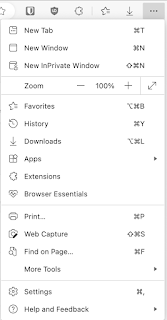
For some reason, there was no option to disable the sidebar by clicking the three dots in the top right and selecting "Hide Sidebar" as is widely documented online:

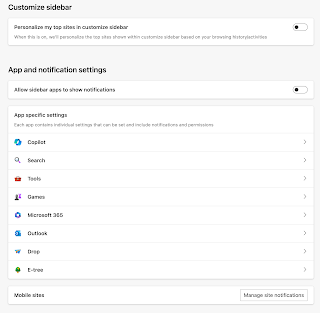
Also, when I went to edge://settings/sidebar, there is no option to disable the sidebar:
After stumbling around searching for the right answer, I found a post on thurrot.com that explains how to do this using policies. The only problem is that the post (from March 2023) misses a "/" in the path. So, I decide to make this post to explain how to do it using the correct paths.

  1. Quit Edge if it is running
  2. Open Finder and navigate to /Library/Managed Preferences (Note: this is the root "Library" folder, not the one inside your user profile folder)
  3. Open Terminal and paste in the command:  /usr/bin/defaults write ~/Desktop/com.microsoft.Edge.plist HubsSidebarEnabled -bool false
  4. Move the newly created file (com.microsoft.Edge.plist), which should now show up on your desktop, to the folder /Library/Managed Preferences
  5. Start Edge and notice that the sidebar is gone. You can also confirm this by going to edge://policy in Edge to see that the policy is now applied:

To remove this policy, simply remove the com.microsoft.Edge.plist file out of the /Library/Managed Preferences folder and restart your Mac (it wouldn't reset the policy by just restarting the application, I had to do a restart).

By the way, I logged in with my Microsoft account, and even selected the option to synchronize all Edge settings, but for some reason, Microsoft chooses to not sync any of your settings to remove and de-crapify Edge. Any time I upgrade or install a new instance of Edge and sign in with my Microsoft account, choosing to sync all of my settings, it refuses to do so, and I must manually set all Edge settings again from their annoying defaults.

Monday, November 14, 2022

Dewey Moore Airstrip Landings in the CubCrafters X Cub in MSFS

I learned of a little airstrip in a rural section of Big Creek in Idaho called Dewey Moore with about 700 ft of usable runway (45.149770,-115.077320). These are my semi-successful landings in Microsoft Flight Simulator (MSFS) at Dewey Moore in the CubCrafters X Cub. I am NOT a pilot, just a flight simmer (and a novice at that).

Tuesday, July 13, 2021

How to Import iPhone .MOV Videos into DaVinci Resolve on Windows without Re-encoding

I've recently been exploring the free version of DaVinci Resolve as an alternative to Premiere Pro for my main video editor on Windows 10. I was trying to edit some footage I shot on my iPhone 12 at 4K (3840 x 2160), 60 fps. However, when I imported the videos into DaVinci Resolve 17, it showed the video clips as "offline," yet the audio would still play back. This is because newer videos shot on iPhone commonly use the HEVC (High Efficiency Video Coding, or H.265) format. While macOS natively supports the HEVC/H.265 codec, it is not natively supported by Windows 10 or DaVinci Resolve out of the box.

I found several suggestions in forums suggesting that in order to get DaVinci Resolve and Windows to properly see videos shot on iPhone, you should re-encode them using another codec (like H.264, DNxHD). There were links to all sorts of shady video conversion tools published by untrusted developers. There were also recommendations to transcode the videos using FFmpeg or Handbrake--both acceptable alternatives. But, there's a simpler way and it only costs $0.99.

HEVC Video ExtensionsIn the Microsoft Store, there is a utility called HEVC Video Extensions. After installing this utility, Windows 10, and DaVinci Resolve will be able to read and encode HEVC/H.265 videos shot on iPhone without the need to convert to another format. Also, depending on your hardware, the codec may support hardware decoding, which will provide accelerated performance when editing in DaVinci Resolve on Windows 10. Hopefully that helps someone else out there looking for a simple, elegant solution to this issue.

Friday, April 30, 2021

How to Fix Error 0x1 in Windows Task Scheduler when Running a PowerShell Script

Recently I wanted to configure a simple script to send an email notification any time a particular Windows 10 machine rebooted. After some quick googling, I whipped up a PowerShell script and then set it up to run in Windows Task Scheduler whenever the system starts up.

But, running a PowerShell script as a scheduled task in Windows isn't so simple. First, you need to invoke the simple PowerShell executable (easy to do as powershell.exe is in the Windows path already), and second, you need to specify what PowerShell script to run using the -File argument. After configuring both of these, I still could not figure out why it was throwing the error 0x1 when trying to run the PowerShell script. Apparently, this is due to a PowerShell execution policy that prevents the script from running (for security reasons). Thankfully, Stack Overflow user briantist posted a nice solution to this issue. All you need to do is configure the task with -ExecutionPolicy Bypass in the arguments when setting up the task:


Don't forget to also add -File "C:\Path To Script\MyScript.ps1" to your arguments to reference the actual script when invoking PowerShell in your task.

It took me days to figure out why I couldn't get this task to run, but thankfully, Stack Overflow came through, and I was able to get it to run. I hope this helps someone else out there who may be getting the 0x1 error when trying to run a PowerShell script as a Scheduled Task in Windows.


Monday, August 10, 2020

Fixing Error 9956 When Trying to Import Videos from iPhone using Image Capture

I have spent months troubleshooting an issue that I was having when trying to import videos (MOV/HEVC) from my iPhone to my MacBook. I experienced the issue on three different MacBook Pro machines, and four different iPhone models (from the iPhone XR to the iPhone 11). The issue is that when using the Image Capture app on macOS to import videos directly from your iPhone, it aborts and randomly shows the following error, "The operation couldn't be completed. (com.apple.ImageCaptureCore error -9956.) (-9956). An error occurred while importing. The item [filename] was not imported":

I spent days troubleshooting basic stuff with Apple support, and was escalated a few times to senior specialists, but never could get anywhere. I re-opened the case after still seeing the error with a new MacBook Pro and new iPhone. Here are some settings that an Apple support rep suggested that I try that actually resolved the issue for me for the time being. Here's what you need to do:

  • On your iPhone, go to Settings -> Camera -> Formats, and select "Most Compatible"
  • Then, on your iPhone, go to Settings -> Photos, and select "Keep Originals" under the section "Transfer to Mac or PC"

After completing the steps above, try again to import the video using Image Capture, and the videos should transfer quickly and without error. Hope that helps someone who may be struggling with the same issue.

Monday, October 29, 2018

Don't freak out, stay anchored

Here's some great advice for surviving a helicopter crash in water, as well as for life in general, from Destin:

Monday, March 12, 2018

Dramatic Strings and Beats

I was messing around with Garage Band on my phone last night and slapped this fun track together.

Friday, January 26, 2018

Eric Chesser from HUSH has the right attitude

I participated in my first big game hunt in Utah last year. It was a general rifle spike elk tag, and I was totally excited! I quickly found out just how truly difficult elk hunting is, and after hunting hard for 6 days in 4 different locations, I never saw a single spike elk. To say I was disheartened and discouraged would be an understatement. I hope that I've learned from that experience, set my expectations, changed the way I think about how I measure success, and how my attitude can affect the outcome when facing adversity.

The following clip is from the YouTube channel Hushin, which features hunting, fishing, and outdoor activities videos. Eric Chesser, part of the HUSH crew, is struggling to find a deer and is feeling pretty low. But, he comes to the realization that even though he's having a difficult and frustrating hunt, there are a lot worse things than having a bad day hunting. His attitude completely shifts. Eric says, "We do all go through hardships...Be kind, be humble...be positive, give back when you can--it will make you feel better than anything ever will." I love this perspective--it made me want to be more grateful and positive when facing difficult challenges.

The best part is from 7:06 to 9:47:

Tuesday, January 16, 2018

The Disintegration of Google Photos and the Broken Google Backup and Sync App

We rely on Google for a lot of things every day which we take for granted, from search, to email, YouTube, online document collaboration and sharing, blogs, custom cloud applications, voice services, apps, domain names, photo management, file backup and syncing, and the list goes on. It is regarding those last two that this post will address. I want to be positive and hopeful about the future of Google Photos/Backup and Sync/Google Drive, but after using these services to backup my family photo library for over a decade, I'm recently starting to have real concerns about the reliability of the service.

Tuesday, January 09, 2018

Modifying EXIF Image Metadata using ExifTool

Sometimes it is necessary to change the EXIF metadata of an image file. For example, in the old days, everyone is familiar with the confusion that results when taking pictures on an older digital camera that just had new batteries put into it, and the date was never set. All the photos show up with a date that is totally inaccurate.

When you have a bunch of photos that have inaccurate dates, it makes your photo library disorganized and confusing, especially when you're trying to search for images from a certain date. Google Photos, for example, uses the EXIF metadata of your uploaded images to organize your photos.

I’ve found that Phil Harvey’s ExifTool, while daunting and somewhat tedious, does exactly what I need it to do to modify EXIF metadata on images.

To change the metadata date on a file using ExifTool, use the following command:

  exiftool "-filemodifydate=YYYY:MM:DD HH:MM:SS" file.jpg

If the EXIF data in the file doesn't respond to the above command, you may need to first enter the following two commands to fix the metadata:

  exiftool "-alldates=YYYY:MM:DD HH:MM:SS" file.jpg
  exiftool "-filemodifydate=YYYY:MM:DD HH:MM:SS" file.jpg

You can also use wildcard characters to apply these operations to multiple files matching the criteria you enter, for example IMG_44* would apply the operation to all files beginning with "IMG_44". And, if you get stuck and need help, the author, and the great community over at the ExifTool forum are super helpful and friendly.

Saturday, December 23, 2017

Finding the Center of a Circle

My son and I were having a conversation about how to find the center of a circle (he's my little aspiring engineer/hacker). While there are many ways to find the center of a circle, this is the one I remembered from high school:
It involves drawing two right triangles inside the circle. Where the hypotenuses intersect is the center of the circle. What is your favorite method of finding the center of a circle?

Wednesday, August 02, 2017

Rattlesnake Encounter

I came across this rattlesnake while hiking yesterday. He was in a defensive posture and was rattling quite a bit. He slowly moved off the trail and we were able to pass by him slowly and carefully without incident.

Tuesday, October 27, 2015

Interactive 46-Gigapixel Image of Milky Way Galaxy

Researchers at Ruhr-Universität Bochum, Germany have compiled a massive, 46 billion pixel image of the Milky Way Galaxy, and made it available via an online interactive viewer. The images were captured in Chile over the course of 5 years, and the entire image weighs in at 194GB.

Thursday, February 12, 2015

What happens to your accounts after you die? Designate a "digital heir" for your accounts

What happens to your accounts after you pass away? When I pass away, I will hopefully have sufficient local backups of meaningful content, such as any notes, journal entries, works that I have created, or our treasured family photo library. But, there would still be a good portion of family history and valuable content in my email, and social networking accounts. And, what if something happened to the local backups? It is important to make preparations for family members to gain access to any content that may still be available in your online accounts after you pass away. Here are some options with a few sites where you can designate someone to have access to your data after you pass away:
  • Google Inactive Account Manager: Share data with trusted friends or family members after a certain inactivity period, or delete your data altogether.

    Google states, "...You can choose to have your data deleted—after three, six, nine or 12 months of inactivity. Or you can select trusted contacts to receive data from some or all of the following services: +1s; Blogger; Contacts and Circles; Drive; Gmail; Google+ Profiles, Pages and Streams; Picasa Web Albums; Google Voice and YouTube. Before our systems take any action, we’ll first warn you by sending a text message to your cellphone and email to the secondary address you’ve provided."
  • Facebook Legacy Contact: Facebook allows users to designate a contact that has permission to download a copy of everything you shared on Facebook, write a pinned post, respond to new friend requests, update profile picture and cover photo after your account is memorialized. A friend or family member can submit a request to Facebook to have your account memorialized after you pass away.
  • Microsoft Next-of-kin Process: Once a request is received, Microsoft can provide a copy of all of the email, attachments, address book, and contacts list on a DVD.
  • Yahoo: As of the publication date of this article, Yahoo does not provide the option to recover the contents of your Yahoo accounts if you pass away. A family member can, however request that the Yahoo account be closed and all subscriptions and billing associated with your account terminated after you die.
  • Twitter: Twitter has a process that will allow a family member to request that your account be deactivated after you pass away.
There is still much progress to be made in this area, and I'm sure that "digital estate planning" will continue to evolve over the next few years as more companies provide users with options for controlling the access to your digital accounts after you pass away. In the meantime, don't forget to make local backups.